How to Fix Screen Touch Delay Issue on Xiaomi
A Xiaomi phone with a touch delay can be frustrating, especially when the screen response feels slow while typing, scrolling, opening an app icon, or performing a long-press. The problem does not always mean that your display is damaged. A wrong Touch & Hold Delay, thick screen protector, temporary software glitch, high RAM usage, outdated MIUI or HyperOS, or an actual hardware problem can all affect touch sensitivity and touchscreen responsiveness.
This guide follows a simple systematic check from the easiest simple fixes to more advanced hardware diagnostics. Start with Step 1 and test the phone after every change. If one solution does not work, continue to the next step instead of changing several settings at once. This makes it much easier to identify the actual cause of the touch issue and avoid unnecessary complex repairs.
Key Takeaways
- A Xiaomi touch screen may respond slowly because of software, settings, accessories, memory usage, or hardware.
- If only long-press actions are delayed, check Touch & Hold Delay first.
- A screen protector, protective film, or tempered glass can interfere with touch recognition.
- Xiaomi provides CIT tools for checking the Touch Sensor and other touchscreen hardware.
- Restarting the phone can clear temporary glitch conditions and refresh system processes.
- Reducing background activity and freeing memory can improve overall device performance.
- Keeping the software update, system update, and firmware current can resolve some touch-related bugs.
- A factory reset should be one of the final software troubleshooting steps.
- A damaged digitizer, loose connector, cracked screen, or water damage usually requires professional inspection.
📋 Table of Contents
- Why Is Xiaomi Screen Touch Slow?
-
How to Fix Xiaomi Touch Delay Step-by-Step
- Step 1: Restart Your Xiaomi Phone
- Step 2: Change Touch & Hold Delay
- Step 3: Remove the Screen Protector
- Step 4: Run Xiaomi Hardware Diagnostics
- Step 5: Reduce RAM Usage and Background Activity
- Step 6: Update MIUI or HyperOS
- Step 7: Test Full-Screen Gesture Navigation
- Step 8: Try Recovery Mode
- Step 9: Factory or Hard Reset Xiaomi
- Boost Xiaomi Touch Performance Instantly
- Advanced Fixes for Xiaomi Touch Delay
- When to Contact Mi Support
- Pro Tips to Prevent Xiaomi Touch Delay
- Frequently Asked Questions
Why Is Xiaomi Screen Touch Slow?
The first thing to determine is whether the entire touchscreen is slow or whether only a particular gesture feels delayed. If normal tap, typing, scrolling, and swiping work correctly but an app icon takes too long to open a shortcut menu, the problem may simply be the phone reaction time for a long-press action. Xiaomi uses a fixed reaction time before the system recognizes a press as a long press instead of a normal tap.
Other problems are more general. External factors such as a faulty charger, moisture, a damaged screen protector, or physical damage can affect the display. Internal issues such as a software glitch, hardware fault, loose internal connection, excessive background activity, or damaged touchscreen components can also cause delayed input.
Your smartphone is often the main hub for communication, productivity, calls, messages, and work, so even a small delay can become irritating. The good news is that you can narrow down the cause without immediately opening the phone or performing a reset.
How to Fix Xiaomi Touch Delay Step-by-Step
Step 1: Restart Your Xiaomi Phone
Begin with the easiest solution. A normal restart can clear temporary memory problems, stop stuck background processes, and remove a temporary glitch that may be affecting the touch response.
If the touchscreen still responds, use the normal restart option. If the phone has become unresponsive screen behavior and you cannot use the interface, perform a force restart by pressing and holding the Power button until the phone vibrates or the MI logo or Redmi logo appears.
Release the button and allow the phone to complete the normal startup. Once Android loads, test typing, scrolling, tapping, and swiping. If the input response feels normal again, the problem was probably temporary. If the delay remains, continue to Step 2.
You can also refer to Google's official Android screen troubleshooting guide for additional screen troubleshooting steps.Step 2: Change Touch & Hold Delay
If the problem mainly occurs when you keep your finger on an item, this is the first setting you should check. Touch and hold actions use a different recognition period from an ordinary tap, so an incorrect timing setting can make a phone appear to have a touchscreen problem.
Go to:
Settings → Additional settings → Accessibility → Physical → Touch & Hold Delay
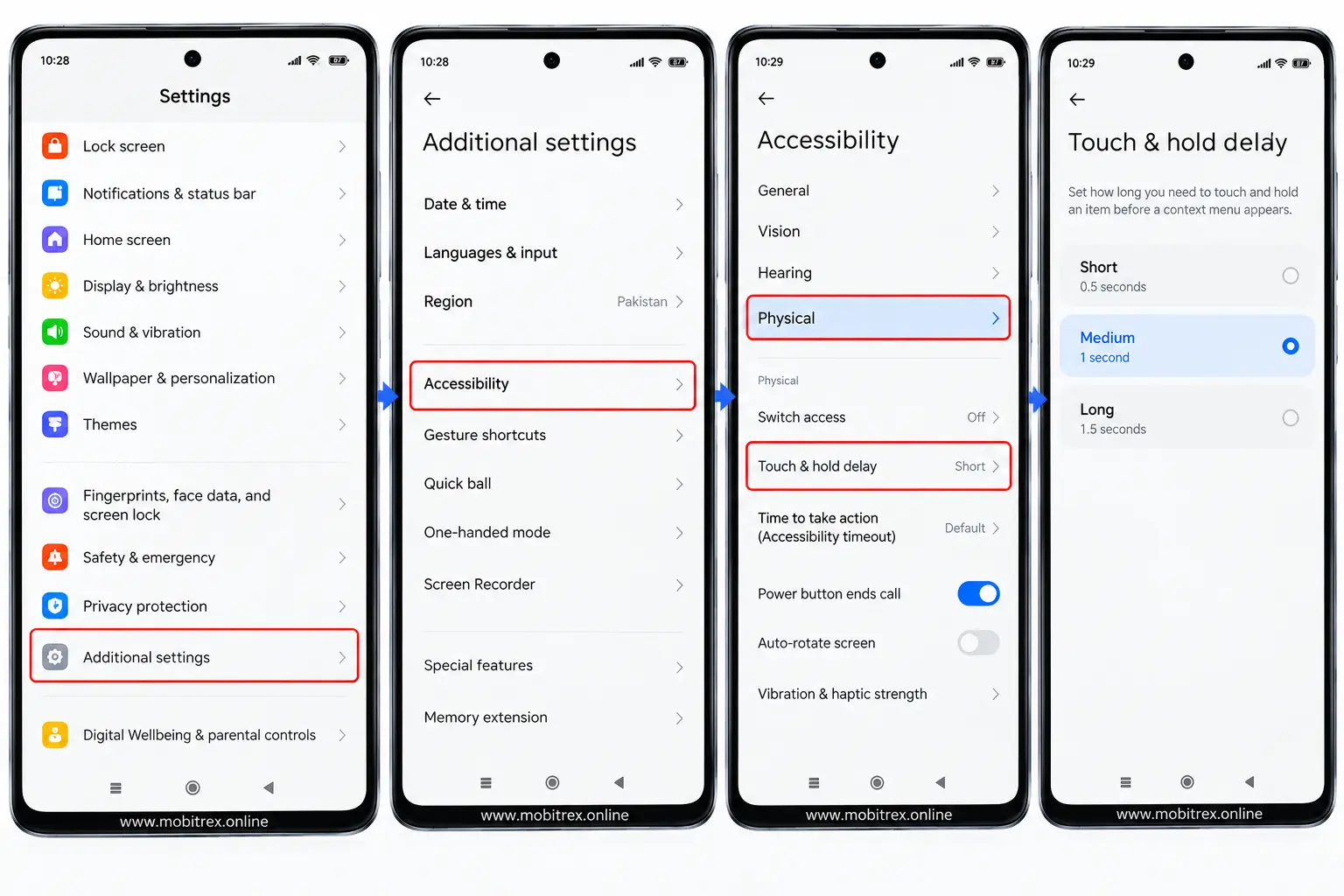
You should normally see three choices: Short, Medium, and Long. A shorter delay gives a faster reaction, but it can cause more accidental triggers if your finger stays on the display slightly too long. A longer delay reduces accidental long presses but can make the phone feel sluggish when you intentionally use a long-press gesture.
This setting is system-wide, so it can affect app shortcuts, text selection, and other control element interactions. If you frequently use long-press actions, test each option for a few minutes and choose the one that feels most natural.
Xiaomi's official touchscreen troubleshooting guide
Step 4: Run Xiaomi Hardware Diagnostics
If the screen is still slow, test the actual touch hardware before making major software changes. Xiaomi devices may provide hardware diagnostics through the CIT engineering menu.
Open the dialer app and enter:
##6484##
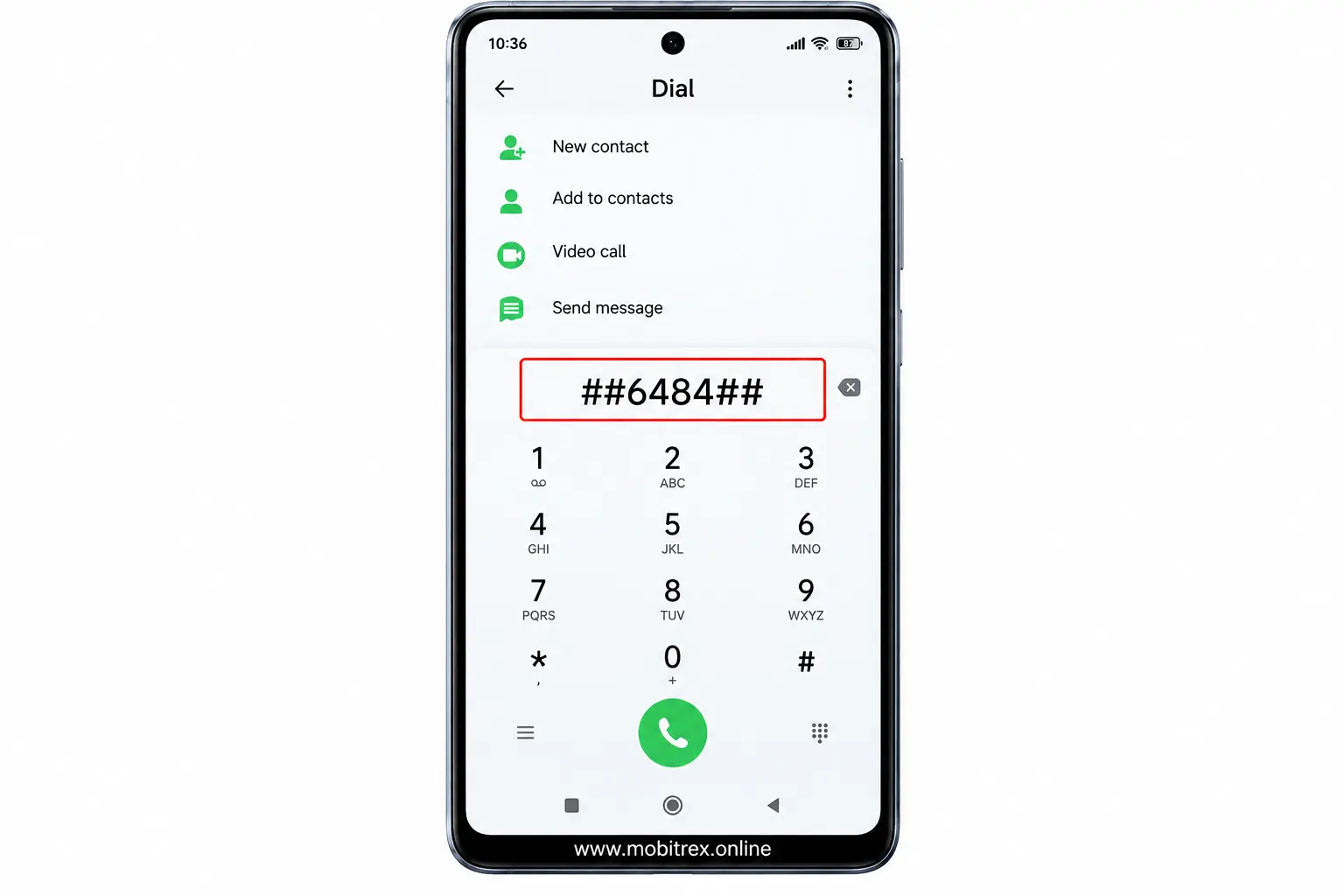
On supported models, this opens the CIT or engineering test menu. Look for Touch Sensor or Touch Screen Test and follow the instructions.

Move your finger across the complete display rather than testing only the center. The purpose of this diagnostic test is to find dead areas, missed input, inconsistent recognition, or other hardware faults.
These phone diagnostics, screen diagnostics, and system diagnostics can tell you whether the problem is likely related to touchscreen hardware. If the test repeatedly fails in the same location, a physical problem becomes more likely. If it passes completely, continue with the software steps below.
Step 5: Reduce RAM Usage and Background Activity
A phone overloaded with background apps and unnecessary processes can feel slow even when the display itself is working correctly. High RAM usage can increase the time required for applications and system elements to respond.
Open Settings → Battery & performance and check the available memory-management options. Depending on your Xiaomi software version, you may see options related to mobile data and device locked behavior, including Clear cache when the phone has been locked for Five minutes.
You can also open Memory or Clean up to close unnecessary applications and free up RAM. This reduces unnecessary background processes and gives the phone more available system resources.
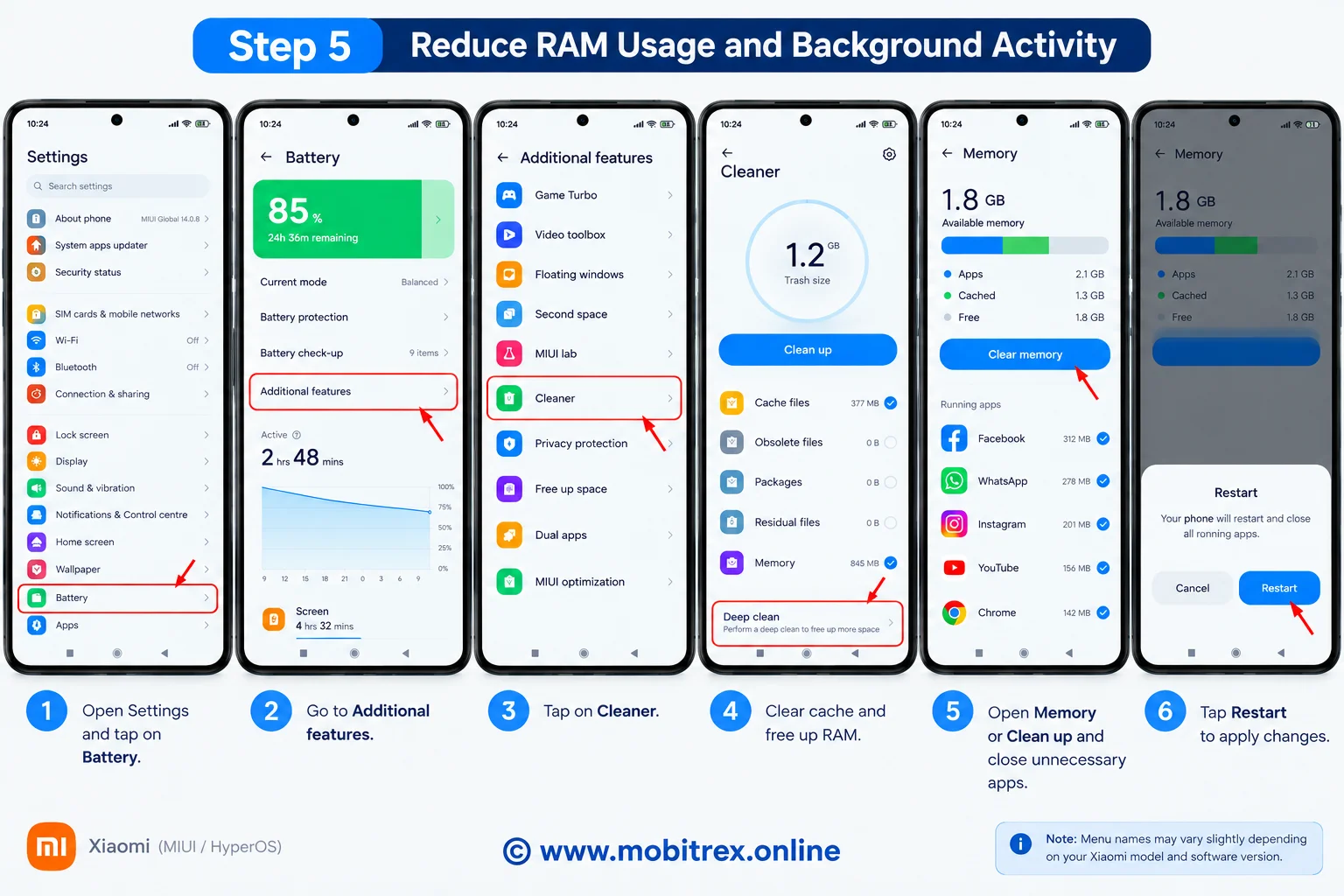
After cleaning the memory, use restart once more and test the touchscreen. If general performance, scrolling, typing, and touch response improve, background activity was contributing to the problem. For official help Xiaomi's official RAM and memory management guide
Also Read
Step 6: Update MIUI or HyperOS
An outdated operating system can contain bugs that affect touchscreen performance, system stability, or software compatibility. Xiaomi regularly releases updates that can include bug fixes and other improvements.
Open:
Settings → About phone → MIUI Version → Check for update
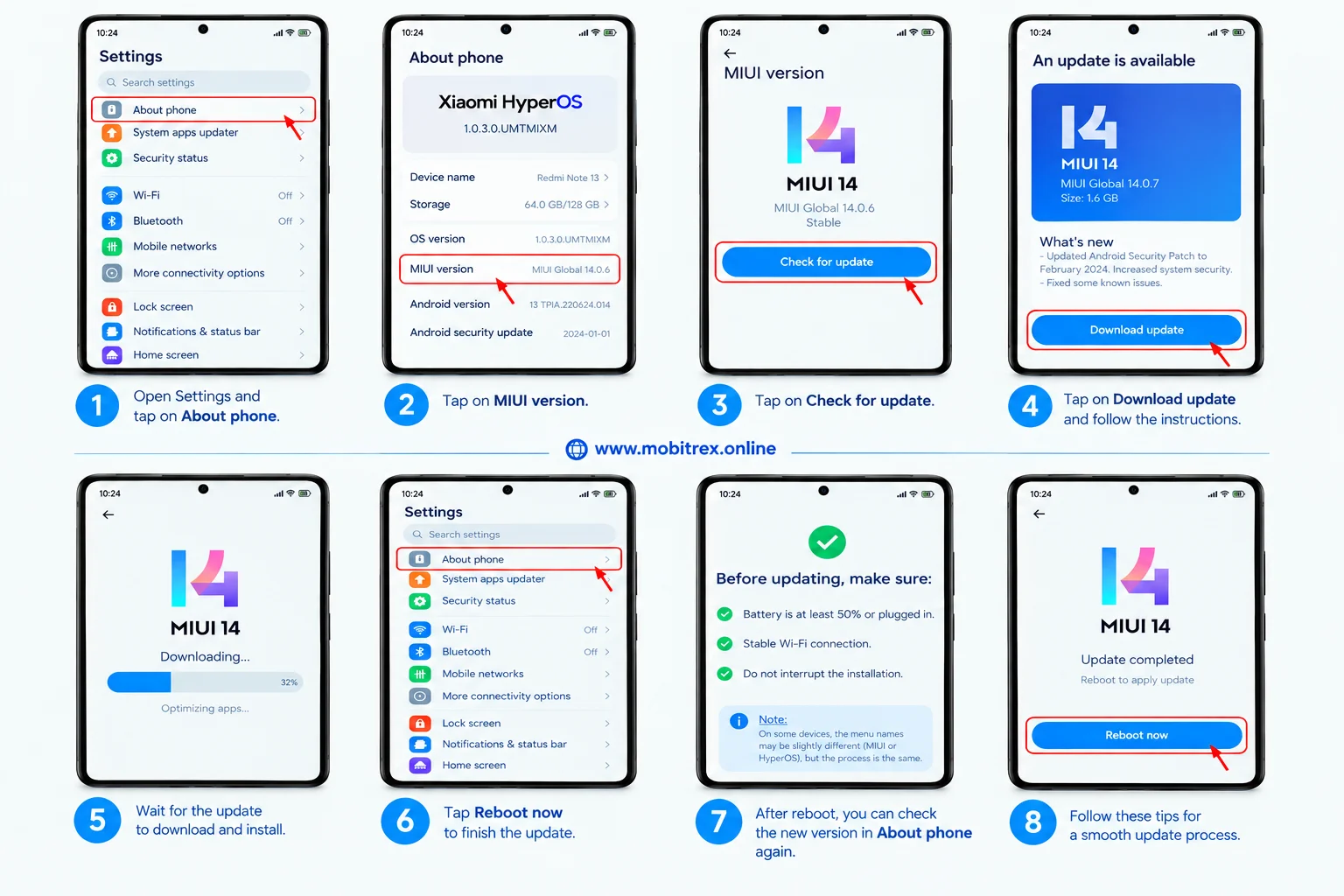
If an update is available, select Download update and follow the on-screen instructions. On newer devices, the software may be HyperOS rather than MIUI, so the exact menu names can differ.
Before beginning the software update, make sure the phone has enough battery and a stable Wi-Fi connection. Do not interrupt the installation. A newer system update or firmware update can resolve software-related touch problems without requiring a reset. For more need Xiaomi's official system update guide
Step 7: Test Full-Screen Gesture Navigation
If your touchscreen delay mainly happens while swiping from the edges or navigating between screens, the problem may involve gesture handling rather than the panel itself.
Go to:
Settings → Additional settings → Full screen display
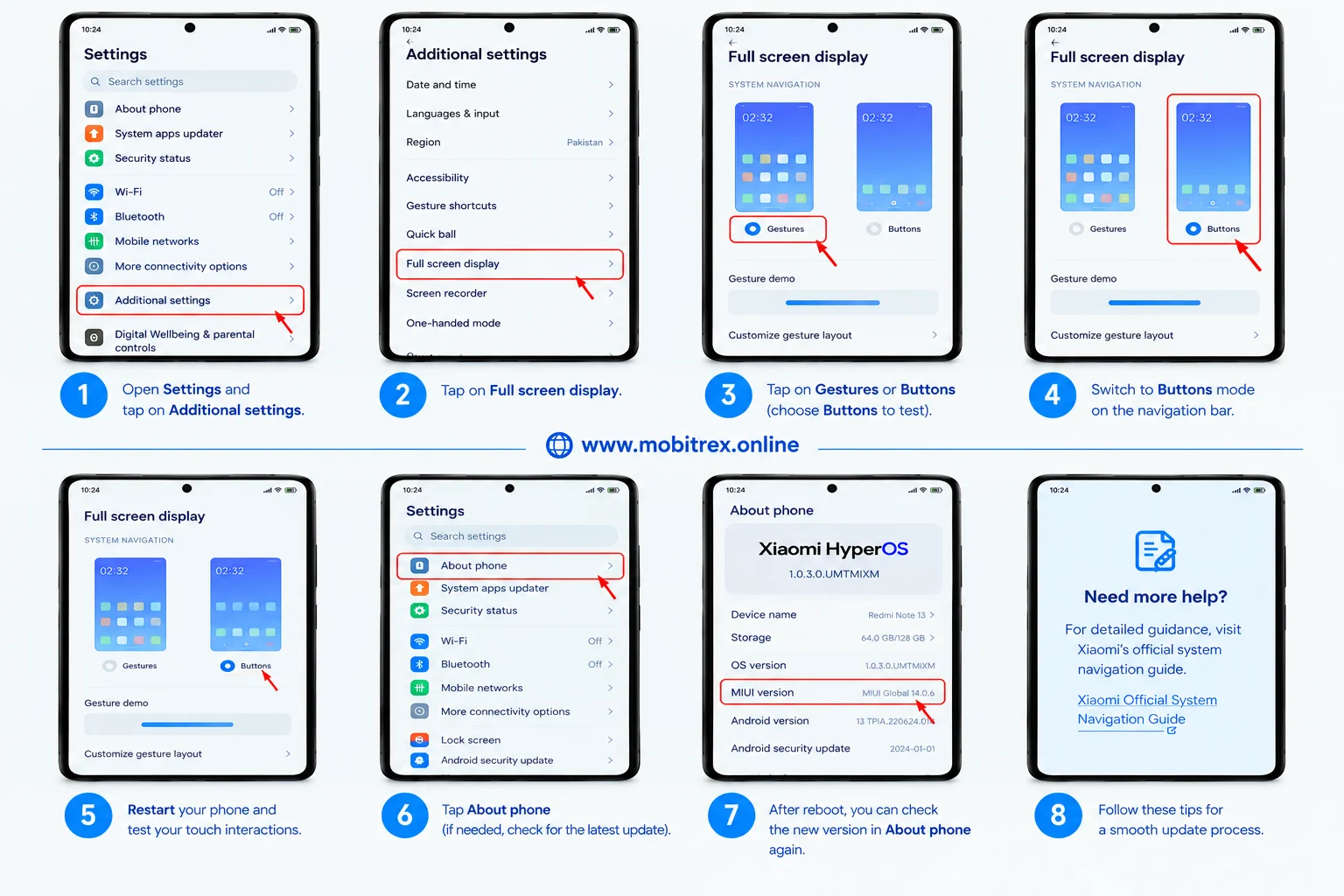
If full-screen gesture mode is enabled, temporarily switch to Buttons on the navigation bar. Restart the phone and test your normal standard touch interactions.
If the delay disappears when gestures are disabled, there may be gesture conflicts within the current navigation configuration. You can later return to gesture navigation after updating the system and testing again. For help Xiaomi's official system navigation guide
Step 8: Try Recovery Mode
If the phone continues behaving strangely after the normal software fixes, you can test recovery mode. Recovery provides a separate recovery environment that can be useful when Android itself has startup or software problems.
Turn the phone off if possible. Then press and hold the Power button and Volume Up button until the Xiaomi logo appears. Use the volume keys to navigate through the recovery menu.
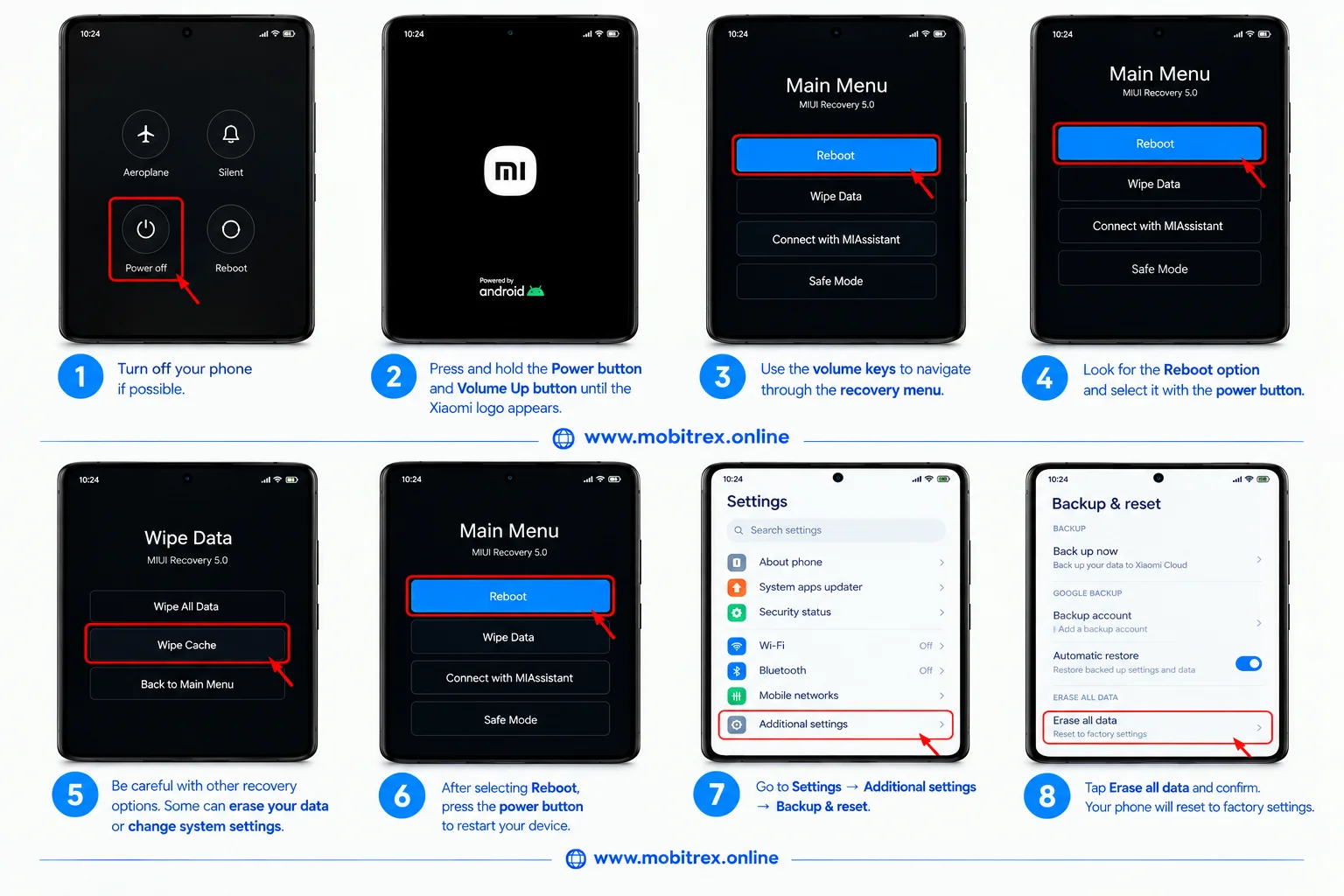
Look for the Reboot or reboot option and select it with the power button. A simple recovery restart can sometimes help when the normal Android interface has become unstable.
Be careful with other recovery options. Some can erase your data or change system settings, so do not select a destructive option unless you fully understand what it does. For help if you fail to set your phone Xiaomi's official Recovery Mode guide
Step 9: Factory or Hard Reset Xiaomi
If every previous software solution has failed, a factory reset or hard reset can be considered. This should not be your first solution because it removes applications, settings, accounts, and personal files.
Before continuing, create a complete backup of your important personal data. If your touchscreen is still usable, the reset option may be available through:
Settings → Additional settings → Backup & reset → Erase all data → Confirm
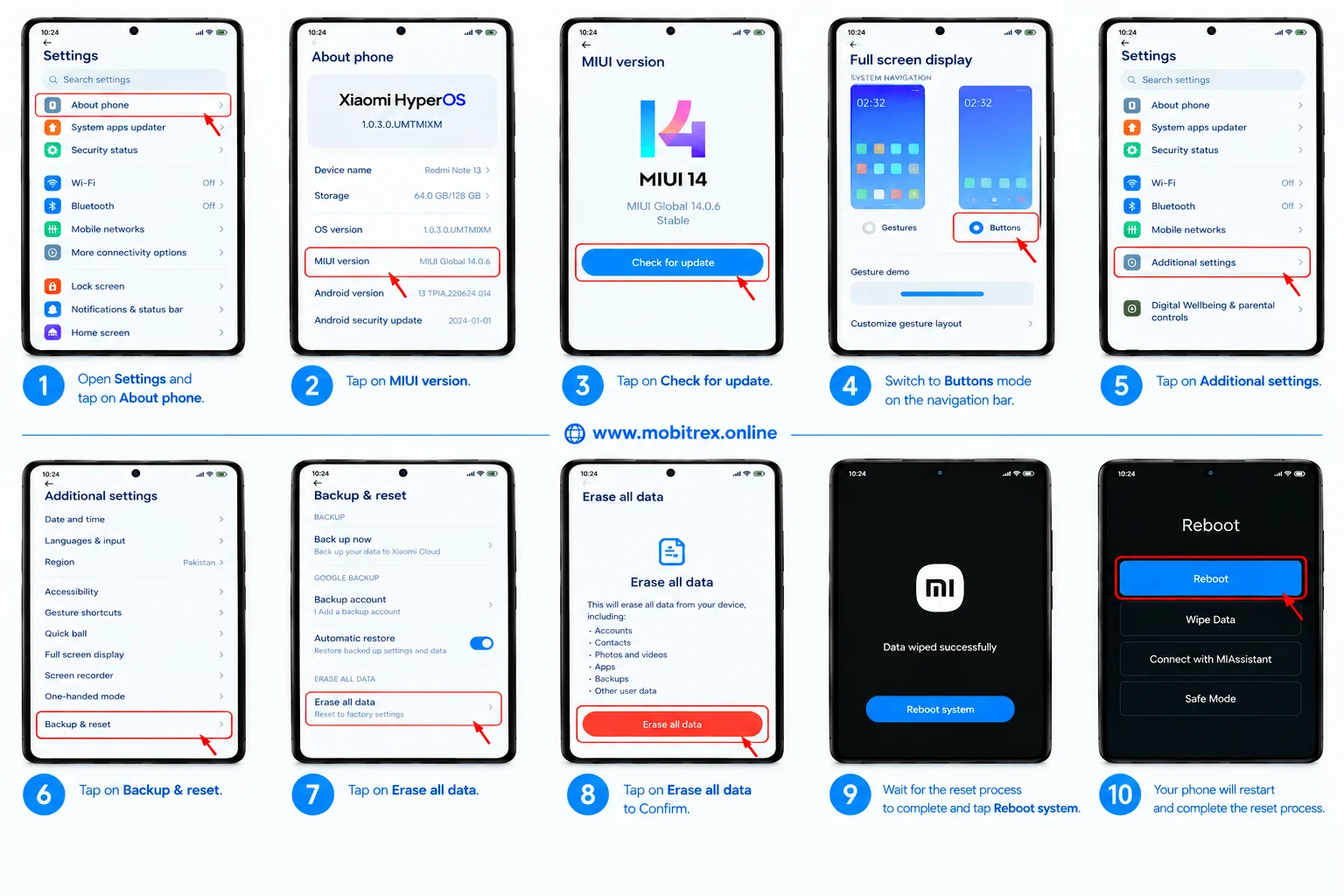
The exact menu can vary between MIUI, HyperOS, and different Xiaomi models.
A reset can resolve persistent software problems and certain system malfunctions, but it cannot repair a damaged screen or digitizer. After completing the device reset, test the touchscreen before reinstalling all your applications. This gives you a cleaner way to determine whether the problem was caused by software. Xiaomi's official factory reset guide
Boost Xiaomi Touch Performance Instantly
After fixing the main issue, you can make everyday touchscreen functionality feel more consistent by keeping the system clean and reducing unnecessary background activity. Remove applications that you no longer use, close excessive background apps, and avoid running multiple heavy applications simultaneously.
Reduce Animations for a Faster-Feeling Interface
Reducing unnecessary system animations can make the Xiaomi interface feel quicker, especially on devices that already struggle with performance. This does not directly repair a faulty touch sensor, but it can reduce the visual delay between your touch input and the interface response.
After changing the animation setting, move between screens, open applications, scroll through menus, and test normal touch interactions. If the phone feels more responsive, keep the setting that provides the best balance between speed and usability.
Keep enough free storage available and regularly use Xiaomi built-in Memory and cleanup features when the phone becomes overloaded. Good memory management, sensible cache clearing, and controlled background activity can improve overall device performance.
If the phone only feels slow when connected to a charger, test it with another reliable charger and cable. A faulty charger can sometimes introduce unexpected touch behavior. If the problem occurs after exposure to moisture, however, treat it as a possible hardware issue rather than simply a performance problem.
Advanced Fixes for Xiaomi Touch Delay
Check Touch Calibration and Touch Accuracy
If the screen passes the basic diagnostic test but individual touches still seem inaccurate, pay attention to touch calibration and touch accuracy. Test the top, bottom, corners, and center of the display.
A healthy panel should provide consistent input response across the usable surface. If the same area repeatedly misses touches while other areas work normally, the problem may involve the touch sensor, digitizer, or another part of the touchscreen hardware.
Check for Physical Damage
Look closely for a cracked screen, pressure marks, unusual display behavior, or signs of water damage. Even if the glass looks mostly normal, the digitizer underneath can be damaged.
A damaged digitizer can cause delayed touches, missed touches, incorrect input, or inconsistent screen response. A loose connector or damaged internal connection can also cause intermittent problems.
If the problem appeared immediately after dropping the phone, bending it, or exposing it to liquid, software troubleshooting should not be your only focus.
Use Android Repair for Serious Software Problems
When the hardware passes testing but Android has serious system malfunctions, specialized Android Repair software may be considered. Such tools are designed to repair certain Android system failures by using the correct firmware for the device.
Depending on the software, the process may involve downloading firmware, installing firmware, or an automatic firmware installation workflow. A user-friendly interface can make the process easier for users without advanced technical expertise.
However, firmware repair should be approached carefully. Confirm the exact model and firmware compatibility, create a backup whenever possible, and understand the potential risk of data loss. This type of repair is intended for software problems, not a physically broken display.
When to Contact Mi Support
If the Touch Screen Test fails, a particular part of the display remains unresponsive, or the phone has suffered physical damage, it is time to stop experimenting with settings.
Contact Mi Support or an authorized service center if you suspect hardware failure. A technician can perform a professional hardware diagnosis, inspect the loose connector or internal connection, and determine whether the phone needs screen replacement or digitizer replacement.
Professional inspection is particularly important after water exposure, because continuing to operate a device with internal moisture can cause additional damage.
Pro Tips to Prevent Xiaomi Touch Delay
Keep MIUI or HyperOS updated and avoid installing unnecessary applications that continuously run in the background. You can also check for available Android system updates when troubleshooting software-related problems. Restart the phone when it has been running for a long period with many applications open.
Use a good-quality screen protector and keep the display clean. Avoid excessive pressure on the screen and protect the phone from drops, liquid, and extreme physical conditions.
If you rely heavily on long presses, choose the appropriate Touch & Hold Delay rather than automatically selecting the shortest setting. A balanced setting can prevent accidental triggers while still giving you a comfortable reaction time.
Also pay attention to when the problem happens. If touch delay appears only during charging, investigate the charger. If it happens after water exposure, consider hardware damage. If it occurs after installing an application or update, software may be involved.
Frequently Asked Questions
Why is my Xiaomi touch screen responding slowly?
A Xiaomi touch screen can become slow because of a software glitch, high RAM usage, background activity, an unsuitable screen protector, outdated firmware, navigation conflicts, or physical hardware problems. Start with the easiest steps and use the CIT diagnostics if the problem continues.
Why is my touchscreen laggy?
A touchscreen can feel laggy because of high memory usage, too many background apps, a thick screen protector, outdated software, temporary system glitches, or hardware problems. Restart the phone, test the display without the screen protector, clean up unnecessary background activity, and run the Xiaomi touch hardware test if the problem continues.
Why is my Xiaomi so laggy?
A Xiaomi phone can become generally laggy when background apps use too many resources, available RAM is low, storage is heavily used, or the system software needs an update. Restart the device, close unnecessary apps, use the built-in Clean up and Memory tools, and keep the system updated. If the phone remains slow, check for overheating, software problems, or hardware issues.
Why is long-press taking too long on Xiaomi?
The Touch & Hold Delay setting controls how long you must keep your finger pressed before Xiaomi recognizes a long press. Go to Settings → Additional settings → Accessibility → Physical → Touch & Hold Delay and try Short, Medium, or Long.
Why does my Xiaomi screen sometimes ignore touches?
Missed touches can come from screen interference, moisture, a damaged protector, software problems, or a damaged digitizer. Run the Touch Sensor or Touch Screen Test through the CIT menu to check whether the hardware is responding correctly.
Can a screen protector cause touch delay?
Yes. A thick screen protector, protective film, or tempered glass can reduce touch sensitivity. Remove it temporarily, clean the bare screen with a microfiber cloth, and perform a touch test.
Will restarting Xiaomi fix touch lag?
A restart can fix touch lag caused by a temporary software problem, overloaded background processes, or a temporary system glitch. It cannot repair physical damage to the screen or digitizer.
Should I factory reset my Xiaomi for touch delay?
A factory reset should normally be one of the final software troubleshooting steps. First try restarting, changing Touch & Hold Delay, removing the screen protector, checking memory, updating MIUI or HyperOS, and running hardware diagnostics. Always create a backup before resetting.
What if Xiaomi hardware diagnostics fail?
If the diagnostic test repeatedly reports a touch sensor problem, especially in the same area, the issue may be related to touchscreen hardware, a damaged digitizer, or an internal connection. Contact Mi Support or an authorized service center for hardware diagnosis.
Can water damage cause delayed touch response?
Yes. Water damage and moisture can affect the digitizer, connectors, and other internal components. If touch problems started after the phone became wet, professional inspection is safer than repeatedly changing software settings.
Can a faulty charger cause Xiaomi touch problems?
A faulty charger or poor-quality charging equipment can sometimes cause abnormal touch behavior while the phone is connected to power. Test the phone with a reliable charger and cable. If the problem disappears when charging is disconnected, investigate the charging equipment before changing system settings.
Can Android Repair fix Xiaomi touch problems?
Android Repair software can help with certain software-related system malfunctions, including some boot and firmware problems. It cannot physically repair a damaged digitizer, cracked display, or loose connector. Hardware problems require professional repair.
Related Guides
If your Xiaomi phone is experiencing more than just touch delay, related troubleshooting can include guides for fixing Android lag, improving phone performance, resolving update problems, clearing cache, dealing with unresponsive screens, and diagnosing hardware faults. These problems can sometimes share the same underlying causes, particularly excessive background activity, software instability, or physical damage.