Why Is My Phone Hanging? 16 Fixes That Make It Fast Again
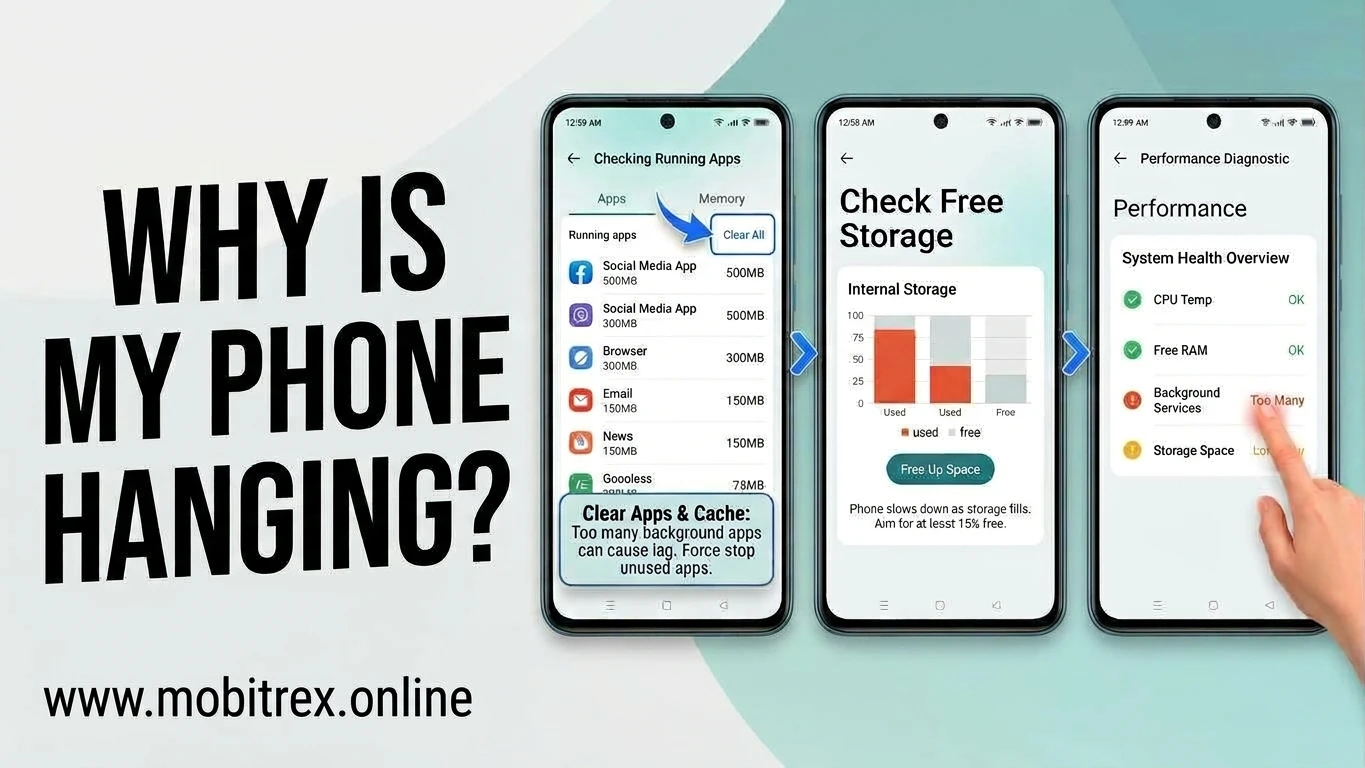
When dealing with phone hanging, phone freezing, mobile lagging, or an unresponsive phone, I would start by checking the basics before spending money on repairs or replacing the device. In many cases, slow performance comes from limited storage space, overloaded RAM, too many background apps, outdated software, or software bugs rather than a serious hardware fault. Start by freeing up space, closing unnecessary apps, restarting the phone, and choosing the update software option in Settings when an update is available. If a particular app keeps freezing, clear its cache or reset apps where appropriate. Also watch for overheating, because gaming, charging, and heavy use can make a phone slow down temporarily.
If the phone continues hanging after these checks, back up your important files and consider whether old hardware is responsible. A factory reset can help rule out many software problems, but repeated freezes, random restarts, sudden battery drain, or persistent storage errors may indicate a fault that needs phone repair. Before paying for an expensive repair, compare the likely cost with a phone upgrade. Checking your old phone value through Mobitrex may help you decide whether selling your current device and putting the money toward a newer one makes more sense.
Table of Contents
- Quick Answer: Why Is My Phone Hanging?
- 1. Your Phone Storage Is Almost Full
- 2. Too Many Apps Are Running in the Background
- 3. Your Phone Needs a Restart
- 4. Your Apps or Software Are Outdated
- 5. One Bad App Is Freezing the Phone
- 6. Your Phone Is Overheating
- 7. Your Phone Has Low RAM
- 8. Malware or Unsafe Apps May Be Slowing It Down
- 9. Your Battery or Internal Storage May Be Aging
- 10. Your Phone Is Too Old for New Apps
- 11. SD Card Failure
- 12. Screen Problem
- 13. Low Battery Mode
- 14. Too Many Background Tasks
- 15. Too Many Notifications
- 16. Hardware Problem
- Factory Reset as the Last Option
- Extra Precautions to Avoid Phone Freezing
- Frequently Asked Questions
Quick Answer: Why Is My Phone Hanging?
A phone may keep hanging because of low storage, too many background apps, outdated software, or heavy apps that consume more memory than the device can handle. Other common causes include malware, overheating, low RAM, a damaged battery, or failing internal storage. Start by trying to restart your phone, free up storage, update apps, clear cache, and remove unused apps. If the problem continues after these steps, check whether a software fault or failing hardware is responsible.
1. Your Phone Storage Is Almost Full
Low storage and insufficient storage space can make even a relatively good phone feel slow. Your phone needs free space to manage temporary files, maintain app performance, install app updates, and store WhatsApp media. When storage is nearly full, photo processing and video processing may take longer, while full storage can cause camera lag, delays when switching apps, and generally slow phone performance. Delete unnecessary downloads, move large photos and videos elsewhere, and remove files you no longer need to free up space.
How to fix it:
- Delete duplicate photos, old videos, and large WhatsApp files.
- Uninstall apps you do not use.
- Move photos and videos to cloud storage or a laptop.
- Keep at least 10-15% storage free.
- Empty the recently deleted folder or trash.
Old phone, 32GB storage, 64GB storage, limited storage capacity, recurring storage problems, deleting files, storage upgrade, phone upgrade
2. Too Many Apps Are Running in the Background
Apps such as Instagram, WhatsApp, YouTube, Chrome, and Google Maps, along with shopping apps, mobile games, and payment apps, may keep background services active even when you are not using them. Too many running apps can contribute to RAM overload, especially on phones with limited memory, eventually causing phone hanging and sluggish performance. Close apps you no longer need, restrict background activity for rarely used apps, and disable unnecessary auto-start permissions where available. You do not need to close every app constantly, but limiting resource-heavy apps can help an older phone run more smoothly.
Keeping too many open apps running simultaneously can lead to iPhone freezing, especially when the device has limited processing capacity. Multiple running applications can create app overload, making everyday tasks slower and causing multitasking issues that affect overall system performance. To fix this, close unused apps from the recent apps screen and swipe away apps you no longer need. This can reduce the workload on your phone and help it respond more smoothly.
How to fix it:
Open the Recent apps screen and close running apps that you no longer need. Restart your phone every few days to refresh system processes, and restrict background activity for unused apps where possible. Removing unnecessary widgets and live wallpapers can also reduce resource usage on older devices. If you use a Samsung phone, open Samsung Device Care to optimize performance, check for abnormal usage, and clear wasted storage. These simple steps can help reduce lag without installing additional cleaning apps.
3. Your Phone Needs a Restart
If your phone has been running for days without a restart, temporary files, lingering background tasks, and minor software glitches may affect its performance. Restarting refreshes active memory and reloads essential system processes, which can sometimes resolve random freezing and slow responses. If you have a frozen Android phone, press and hold the power button to restart it; if the device does not respond, a force restart may be necessary. Follow Google Android support instructions for your specific model. For an unresponsive iPhone, use the appropriate procedure explained by Apple support, since the button combination varies by model.
4. Your Apps or Software Are Outdated
Outdated apps and an outdated operating system can cause app crashes, app freezing, and software conflicts that lead to performance issues and phone hanging. Whether you use outdated Android or outdated iOS, keeping your device and apps updated can fix known bugs and improve compatibility. However, if the problem begins immediately after an app installation, a particular app may be responsible rather than the operating system itself.
How to fix it:
Open system settings to update Android or update iOS if an update is available. Update your apps through the Play Store or App Store, and uninstall problematic apps that continue to freeze. Avoid installing apps from unknown APKs or untrusted third-party websites, as modified or unsafe downloads can introduce security risks and stability problems. Regular app updates can help prevent recurring software issues.
5. One Bad App Is Freezing the Phone
Sometimes, a single app is enough to cause app-related lag across the entire device. Buggy apps or corrupted apps may have excessive memory usage, leading to high RAM consumption and frequent freezing. This can happen with heavy games, camera apps, cleaner apps, VPNs, launchers, or apps installed through unknown APKs. If your phone repeatedly freezes while using the same app, pay attention to that pattern before changing other system settings.
Poorly designed apps can trigger app crashes, create functionality issues, and affect your phone’s stability. If you notice that freezing starts after installing one of these problematic apps, try to uninstall faulty apps and check whether the phone works normally again. For safer performance, download applications only from verified app sources and official app stores, and follow safe app installation practices by avoiding suspicious downloads and modified apps.
How to fix it:
When app crashes occur, first identify the problematic app, then clear app cache and force stop it. Check for updates, update apps where available, or reinstall apps if their files may be corrupted. If the problem continues, uninstall apps that trigger persistent hanging. You can also reset app permissions if incorrect permissions are contributing to the issue. Samsung users can consult Samsung app support for additional troubleshooting guidance.
6. Your Phone Is Overheating
Phone overheating can cause slow performance and phone hanging, especially when your device is exposed to excessive heat for a long time. Keep your phone at a normal room temperature, avoid charging during use when running heavy apps or games, and protect it from direct sunlight. If the device becomes hot, close demanding apps, disconnect the charger if safe to do so, and let it rest until it cools down. Proper device cooling can help your phone run smoothly and reduce performance issues.
7. Your Phone Has Low RAM
Low RAM can make multitasking difficult, particularly on budget phones with 2GB RAM, 3GB RAM, or 4GB RAM. Even phones with 6GB RAM can experience phone lag when running heavy apps, keeping multiple open apps, or dealing with full storage. If your device is an outdated phone, its memory capacity may struggle to meet the demands of newer apps, and these hardware limitations can become more noticeable over time.
How to fix it:
Use Lite apps where available, avoid running heavy games alongside several other open apps, and remove unused apps. Disable unnecessary auto-start permissions for non-essential apps, and keep fewer browser tabs open to reduce memory pressure. If low RAM remains a persistent limitation, consider a phone upgrade instead of continually trying to optimize an older device.
8. Malware or Unsafe Apps May Be Slowing It Down
Malware and unsafe apps can make your phone sluggish by running unwanted background processes, displaying intrusive ads, or engaging in unauthorized data collection. The risk increases when installing APK files from untrusted sources, including unknown games, mod apps, and questionable cleaner apps. Some suspicious cleaner apps, booster apps, and battery saver apps may consume resources instead of improving performance, resulting in a slow phone.
A virus or malware infection can cause phone freezing, slow performance, unwanted ads, and unusual background activity. Malicious downloads from untrusted websites or unofficial app sources can put your device at risk. Use trusted antivirus software or built-in security tools to run a malware scan and identify potential threats. If you find suspicious applications, uninstall harmful apps and follow basic mobile security practices, such as downloading apps only from reliable sources and keeping your phone’s software updated.
How to fix it:
Review recently installed apps and remove unknown apps you do not trust. Run Google Play Protect through the Play Store to scan for potentially harmful applications, and avoid downloading software from third-party APK websites. If the phone continues hanging, create a data backup before considering a factory reset. A reset can remove many software-related problems, but restore only trusted apps afterward so the same issue does not return.
9. Your Battery or Internal Storage May Be Aging
Older phones can develop hardware problems as their components wear out. Battery degradation, a failing storage chip, or motherboard damage may cause persistent hardware failure, even after a factory reset. Watch for warning signs such as random restarts, sudden battery drain, overheating during basic tasks, slow app launches, or recurring storage errors. If these symptoms continue despite software troubleshooting, have the phone inspected by a qualified technician before the problem gets worse. Compare the estimated repair costs with your phone's resale value to decide whether repairing or replacing the device is the more practical option.
10. Your Phone Is Too Old for New Apps
Older phones often struggle with modern apps because their outdated hardware cannot always handle newer software demands, leading to slow operations, phone hanging, and persistent freezing. Try using lightweight apps and installing available software updates to improve performance. If these steps do not help, consider a device upgrade or professional repair after checking for hardware faults. When an older phone can no longer run essential apps reliably, investing in a new phone may be more practical than repeatedly troubleshooting the same issue.
11. SD Card Failure
SD card failure, a slow SD card, or a malfunctioning memory card can cause phone lag and file access problems, especially when apps, photos, or videos are stored on the card. To check whether the memory card is causing the issue, safely remove the SD card and test phone without SD card to see if performance improves. Follow basic memory card troubleshooting by checking the card for errors, backing up important files, and replacing it if it is damaged.
12. Screen Problem
A screen freezing issue or unresponsive touchscreen can make your phone appear to be hanging even when the phone is still active in the background. Try to restart phone to check whether the touchscreen responds normally again. If you experience persistent screen issues, such as delayed touch responses or areas that do not respond, arrange a professional screen inspection to identify possible hardware damage. I Repair Zone can help users explore phone repair options when basic troubleshooting does not solve the problem.
13. Low Battery Mode
Low battery mode uses power saving features to extend battery life, but some devices may experience reduced performance while this mode is active. If you notice phone freezing or sluggish responses, charge phone to an adequate level and check whether performance improves. You can also deactivate battery saver temporarily to see if it makes a difference. Proper battery management, including avoiding frequent deep discharges and keeping your phone’s software updated, can help maintain reliable performance.
14. Too Many Background Tasks
Too many background tasks and hidden processes can increase resource consumption, making your slow phone feel even less responsive. Some apps continue running through background activity even when you are not using them. Open your phone’s system settings to review app permissions and disable background activity for apps that do not need to run continuously. You can also restrict or uninstall unused apps to free up system resources and improve performance.
15. Too Many Notifications
Excessive notifications and repeated alerts from multiple apps can interrupt your activities and sometimes contribute to phone hanging, especially on devices with limited resources. Open your notification settings and disable unwanted notifications from apps that send frequent alerts. This can reduce unnecessary background activity and help maintain system performance. Managing notifications regularly supports smoother and more efficient phone operation.
16. Hardware Problem
Hardware failure can cause persistent phone hanging, especially when there is a damaged screen, a faulty chip, or battery problems. If restarting your phone and trying basic troubleshooting steps do not help, consider professional phone repair. A proper hardware diagnosis and technical inspection can help identify the cause and determine whether device repair is necessary. I Repair Zone can help you explore suitable repair options and understand the importance of proper hardware troubleshooting before replacing any components.
Factory Reset as the Last Option
If your phone continues hanging after trying other solutions, a factory reset may help eliminate persistent software conflicts, unnecessary junk files, and problematic settings. Before proceeding, create a complete data backup and save photos, contacts, WhatsApp chats, and other important files to a safe location. A reset will remove apps and restore default settings, so you may need to reset settings and reinstall only the apps you actually use. If the phone still freezes after the reset, a hardware issue may be responsible and require professional diagnosis.
Extra Precautions to Avoid Phone Freezing
To prevent phone freezing and prevent phone hanging, follow a few simple habits as part of regular phone maintenance. Perform a daily phone restart when needed, install regular software updates, and keep only useful apps on your device. Avoid unreliable phone cleaning app tools that promise unrealistic speed improvements, and maintain a reasonable headphone volume to protect your hearing. These habits can support efficient performance and help your phone run more smoothly over time.
Frequently Asked Questions
1. What does it mean when a phone hangs?
A phone hangs when it becomes unresponsive, freezes, or stops responding to taps because of software glitches, low storage, or hardware problems.
2. How to reset hanging mobile?
Try restarting your phone first. If it remains frozen, use the model-specific force-restart button combination. A factory reset should be the last option after backing up your data.
3. How to fix a freezing phone screen?
Restart your phone, free up storage, update your apps and operating system, and uninstall recently installed apps if the problem continues.
4. Why does my phone keep hanging up by itself on Android?
If calls disconnect unexpectedly, the cause may be a weak network signal, SIM card problems, outdated software, or a faulty calling app.
5. How do I stop my phone from hanging?
Keep enough storage free, close unnecessary background apps, install software updates, and avoid suspicious apps to reduce phone freezing.
6. How do I stop my phone from hanging up on its own?
Check your network signal, SIM card, and calling app updates. If calls continue disconnecting, contact your mobile network provider or have your phone checked.